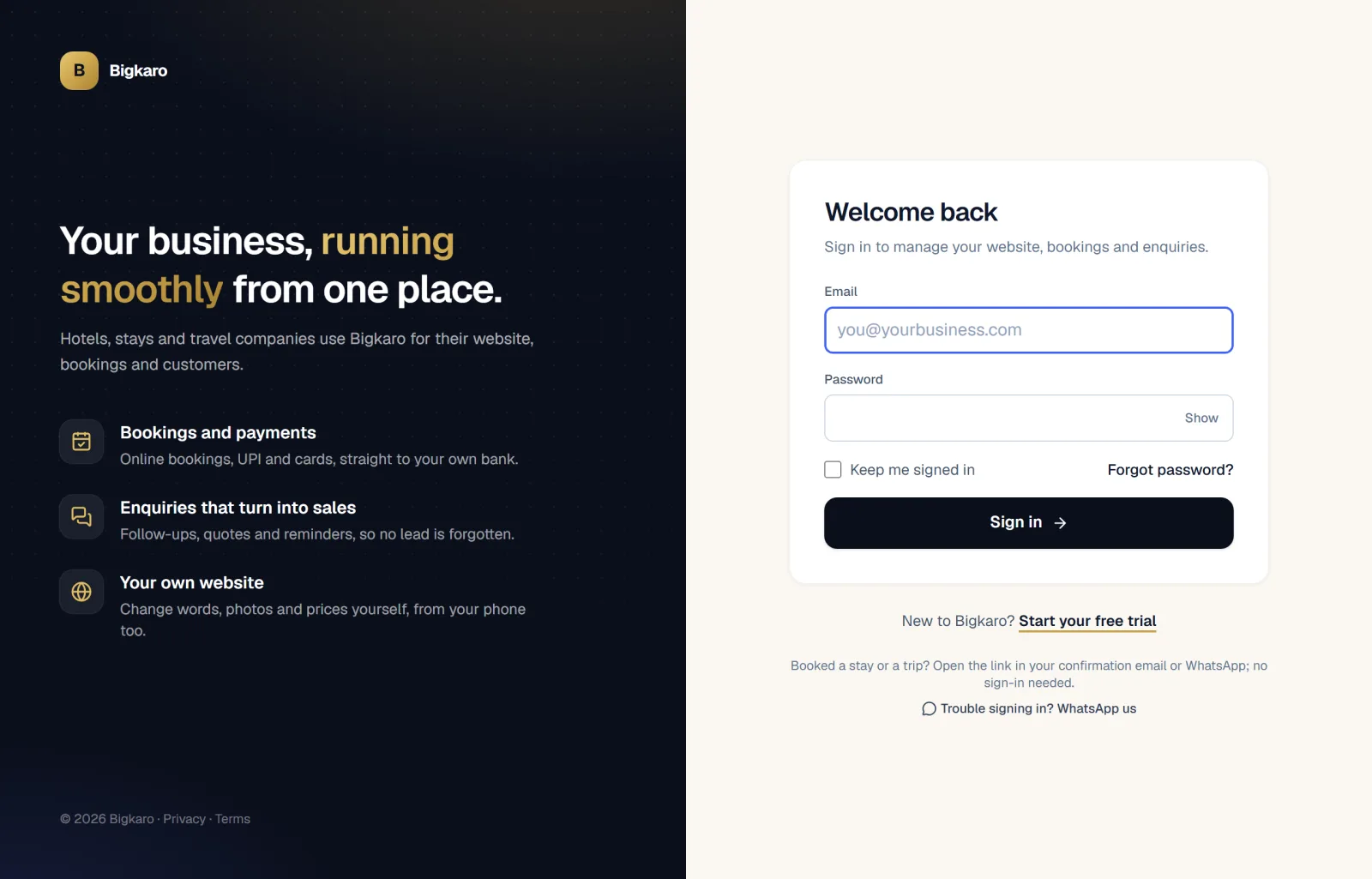
Everyone in your company signs in at bigkaro.com/login with their own email and password, on a computer or a phone.
Sign in
- Open bigkaro.com/login.
- Enter the email you signed up with and your password. Tap Show to see what you typed.
- Tick Keep me signed in on your own phone or computer, so you are not asked again for a while. Leave it unticked on a shared computer.
- Press Sign in. You land on your first screen: Overview for a travel company, Today for a hotel.
Tip: Your website's address (like yourcompany.bigkaro.com or your own domain) is for your customers. You and your team always sign in at bigkaro.com/login.
Forgot your password?
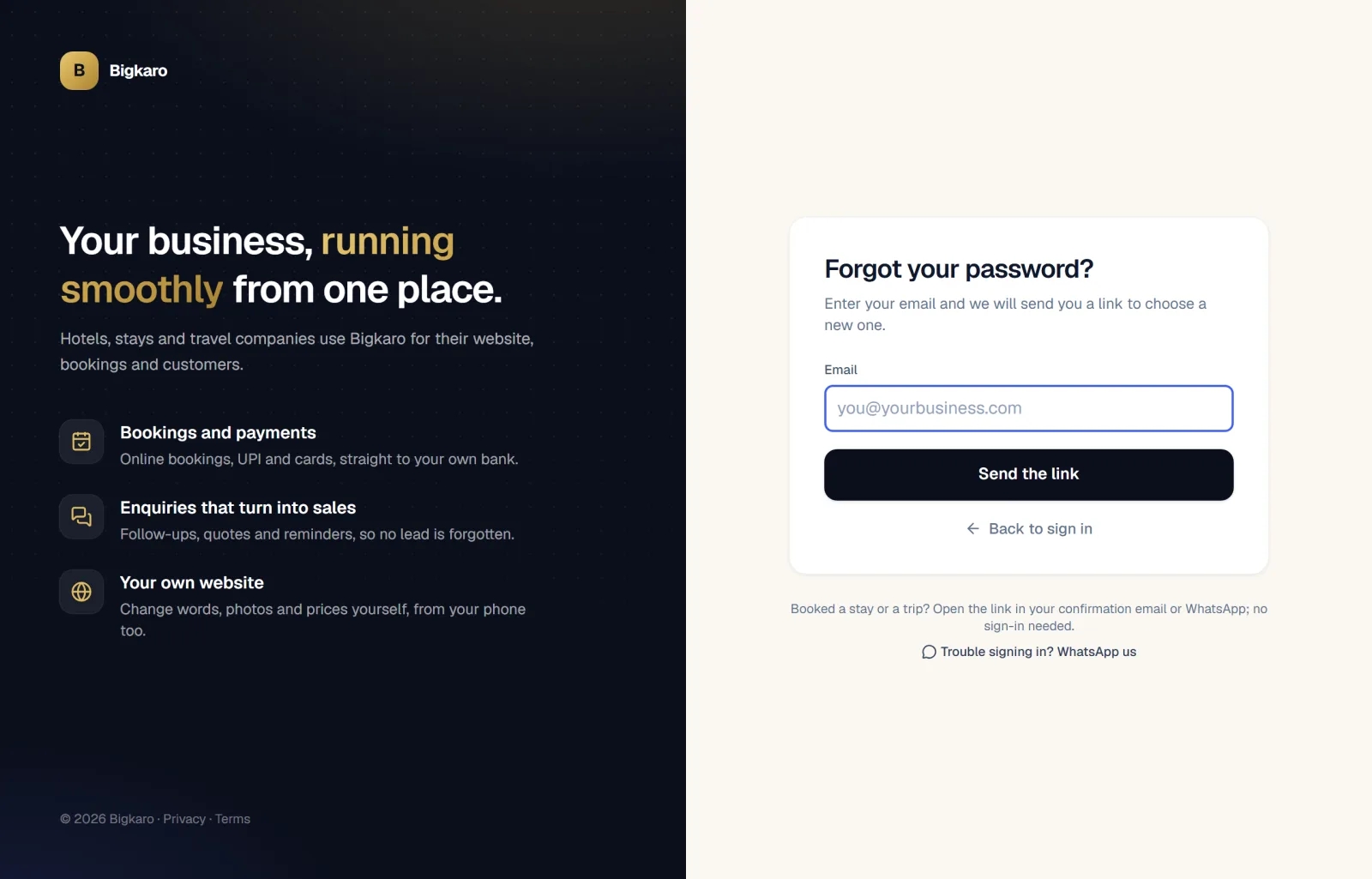
- On the sign-in page, press Forgot password?
- Enter your email and press Send the link.
- Open the email from BigKaro and press the link in it. The link works for 60 minutes.
- Choose a new password, type it again, and press Change password. You can now sign in with it.
Did not get the email? Check your Spam or Promotions folder, and make sure you typed the email you signed up with. You can ask for a new link after a minute.
Change your password
When you are signed in, you can change your password at any time:
- Open Settings in the menu, then the Team & account tab.
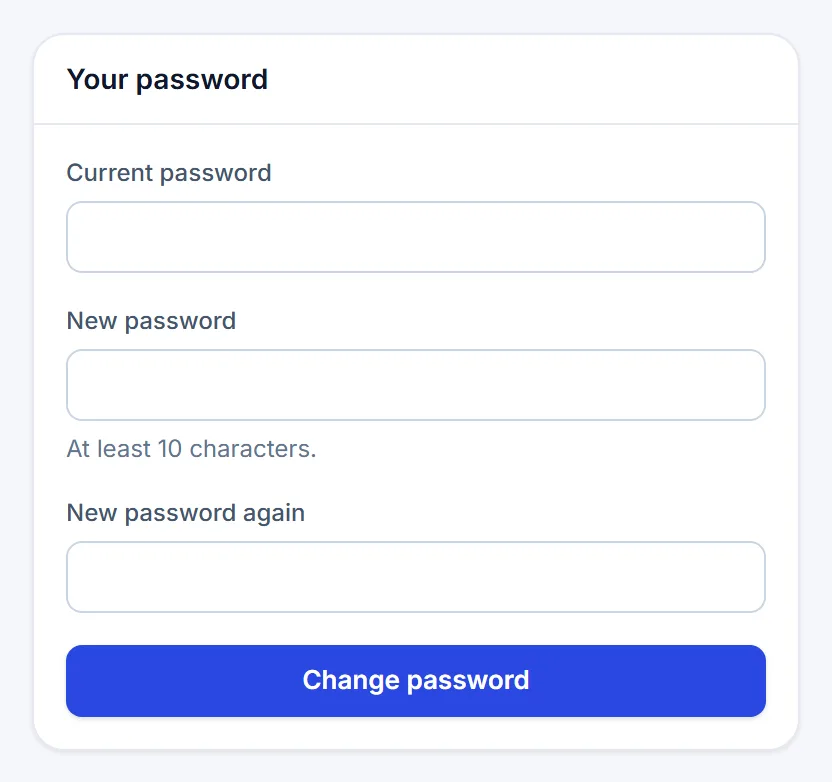
- Under Your password, enter your current password, then the new password twice.
- Press Change password.
What makes a good password
- At least 10 characters. A short sentence you can remember, like
morning chai at 7, is easy for you and hard to guess. - Do not use a password you use on other websites. BigKaro also refuses passwords that have appeared in known data leaks.
- Never share your password. Add each person in your team instead (see below), so everyone has their own.
Reset a team member's password
If someone in your team cannot sign in, the account owner can give them a new one:
- Open Settings, then Team & account.
- Next to the person's name, press Reset password.
- A temporary password is shown once. Copy it and send it to them on WhatsApp.
- Ask them to sign in and change it from Settings → Team & account straight away.
If someone has left your company, press Remove access next to their name instead. Their account stops working at once, and their past work stays.
Too many tries?
After several wrong passwords in a row, sign-in is paused for a minute to keep your account safe. Wait a minute and try again, or use Forgot password?.