Everyone who works on your BigKaro account should have their own sign-in. Then nobody shares a password, you can see who did what, and you can stop one person's access without touching anyone else's.
Only the owner of the account can add people and change their roles.
Who can do what
Each person gets one of three roles. The names differ a little between a travel company and a hotel:
| Role | Travel company | Hotel |
|---|---|---|
| Owner | Everything, including the team, payments and settings. | Everything, including staff, payments and settings. |
| Manager | Runs the company: trips, bookings, the website and blog. Not the team or payments. | Runs the property: rooms, rates, offers and reports. Not staff or payments. |
| Staff (travel) / Receptionist (hotel) | Enquiries only: sees and answers them. Cannot change trips, bookings or the website. | The front desk: bookings, check-in and check-out, rooms and guests. |
The same list, with each role explained, is at the bottom of Your team.
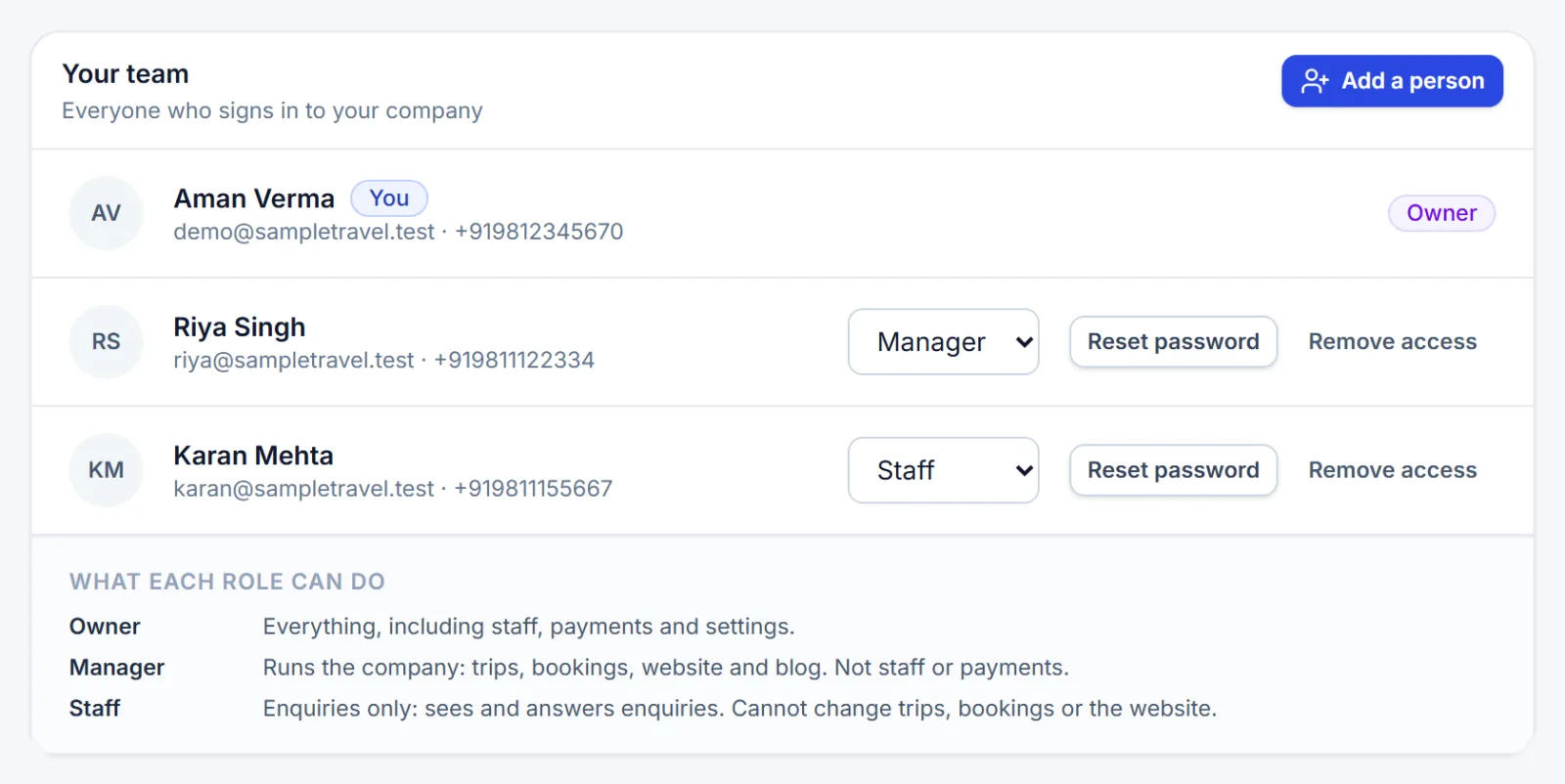
Add a person
- Open Settings, then the Team & account tab.
- Press Add a person.
- Enter their name, email and (optionally) phone, and choose what they will do.
- Press Add person.
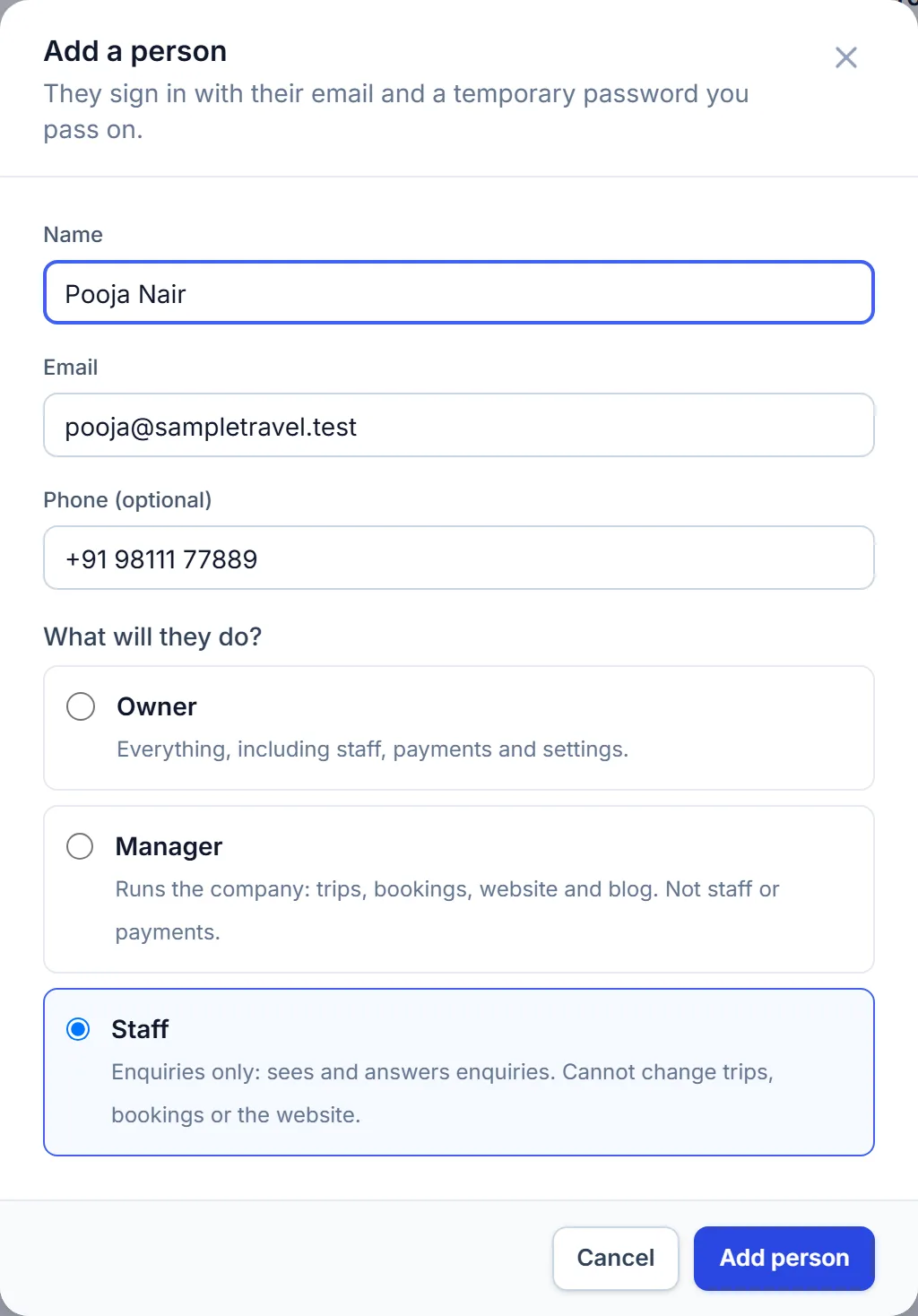
A temporary password is shown once. Copy it and send it to them on WhatsApp, with the sign-in address bigkaro.com/login. Ask them to change it as soon as they sign in, from Settings → Team & account.
Tip: How many people you can add depends on your plan. Settings → Plan & billing shows how many you have and your limit, like Users: 3 of 10.
Change a role
Next to the person's name, choose another role from the list. It takes effect the next time they open a page.
When someone leaves
Press Remove access next to their name. They can no longer sign in, at once. Everything they did stays, with their name on it. If they come back, press Restore.
Someone forgot their password
Press Reset password next to their name to make a new temporary password, or ask them to use Forgot password? on the sign-in page. See Sign in, reset or change your password.