A quotation is a price you prepare for one customer: their dates, their group, their budget. BigKaro turns it into a clean page the customer opens on their phone, compares up to three options on, and accepts with one tap. Accepting makes the booking and asks for the advance. (Quotes are on the Pro plan.)
Step 1: Start the quote
- From an enquiry: press Quote next to it. The customer's name and phone are filled in.
- Or open Quotes in the menu and press New quote.
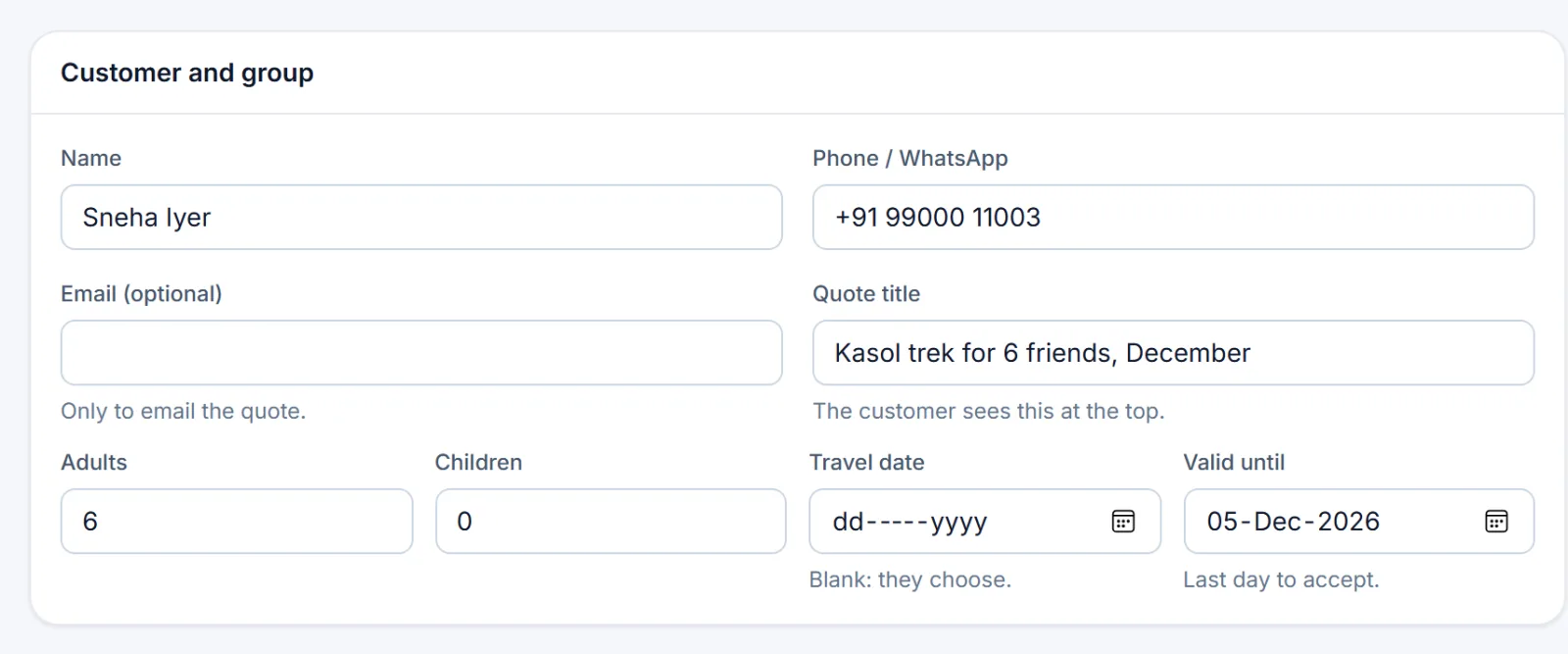
Under Customer and group, check the name, phone / WhatsApp and email (only needed to email the quote), and write a quote title the customer sees at the top, like Kasol trek for 6 friends, December. Add the number of adults and children, the travel date (leave it blank to let them choose) and valid until: the last day they can accept.
Step 2: Write the options
Each option is one way to do the trip, like Standard stay and Premium stay.
- Start from one of your trips fills the name, the day-by-day plan, what is included and the price from a package. Change anything you like; the package itself is not changed.
- Or write it yourself: trip name, destination, length, a line about this option, the day-by-day plan, and what is included and not included.
- Price: the price per adult and per child, any extras, and a discount with the reason the customer sees, like Group discount. The total is worked out for you.
Press Add another option for a second or third choice. Two or three options make it easy for the customer to say yes to one.
At the end, add a note for the customer, your terms, and the share of the price to confirm the booking (30% is common; 100 asks for the whole amount).
Step 3: Send it
Press Save and get the link. (Press Save draft to finish it later, or Preview as the customer to see their page first.)
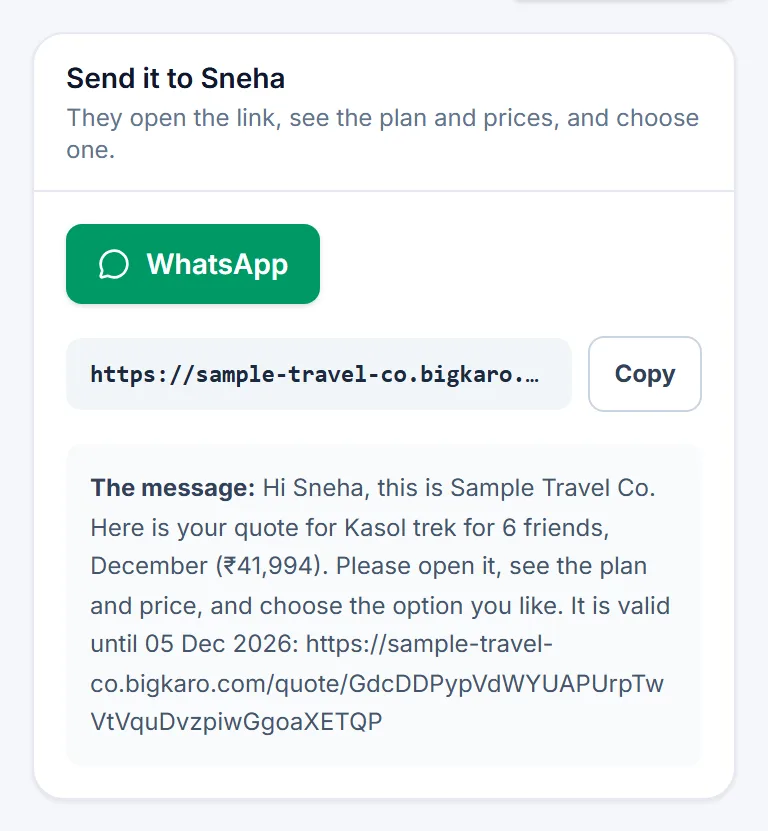
- WhatsApp opens a chat with the message and link ready to send.
- Email sends it to the customer's email.
- Or Copy the link and send it anywhere.
What happens next
- The quote's page shows when the customer first opened it.
- If they have not answered, they get one reminder email the day before it runs out (you can switch this off in Follow-up settings).
- When they accept an option, the booking is made, they are asked to pay the advance, and you see the booking in Bookings.
- If they decline, you see their reason. Press Make a new version to send a changed quote; the old one is replaced.